Open topic with navigation
Printing Item Tags
Item tags are available to help volunteers keep track of participant belongings. Diaper bags, backpacks, lunches, and so on can be labeled with an item tag for the participant. Multiple item tags can be printed from the Review Checkins screen. An item tag prints each time you touch the Print Item Tag button.
Note: If the printer functions are turned off, the Print Item Tag button is disabled. Touch the Menu button and then touch Turn Printer Functions On to enable the Print Item Tag buttons.
To print an item tag
- Search for and select a participant. Touch Next and verify the room/location is correct. Complete this step for each participant if there are multiple participants. Optionally, you can also bypass the room/location selection by touching Rapid Checkin. This button will only be available if you decided to Enable Rapid when you started Check‐in.
- Touch Review Checkins or touch Next if you are checking in more than one participant. Continue touching Next until you see the Review Checkins screen.
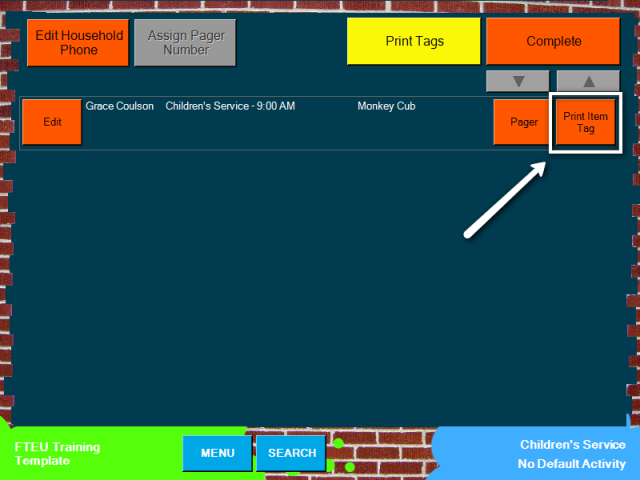
- Touch Print Item Tag beside any of the participant names listed on the Review Checkins
screen.
- Touch Print Tags and Complete to finish the check‐in.